
Help & FAQ
Answers to the questions that come up most often. If yours isn’t here, email santa-help@respondermax.com — and if it’s the night of a route, say so in the subject line.
Running a route
How do I get the tracking link to a driver who doesn't have a login?
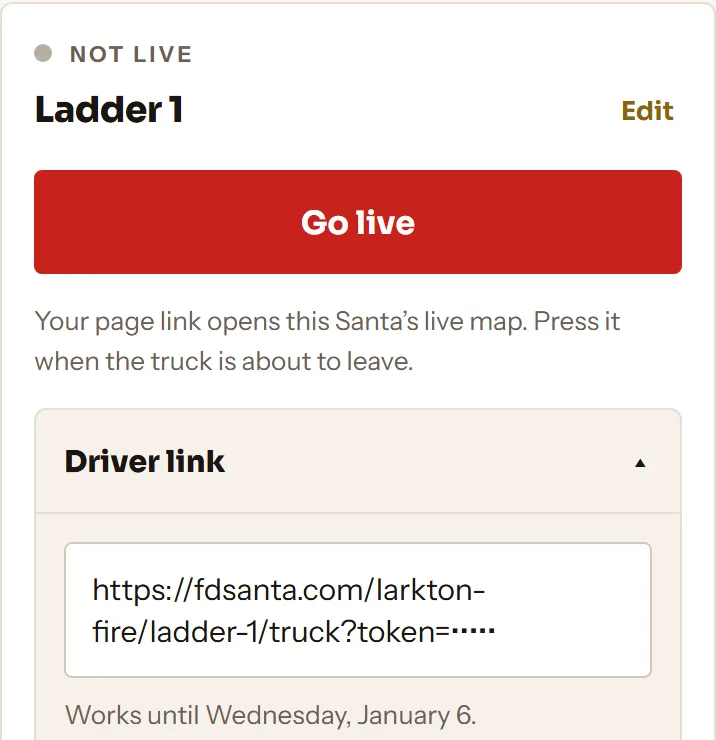
If the Santa has no link yet, press Make a driver link first.
In Santas, find the Santa they’re driving. On a phone, press Send to the driver; on a computer, press Copy and text the link. Or press Print a Driver Card and hand it over. When they open the link or scan the card on the truck’s phone, they get the Start Tracking screen: no sign-in, no app.
Anyone with the link or the card can move that Santa on the map. Send it to one person, keep the card in the truck, and don’t post either online.
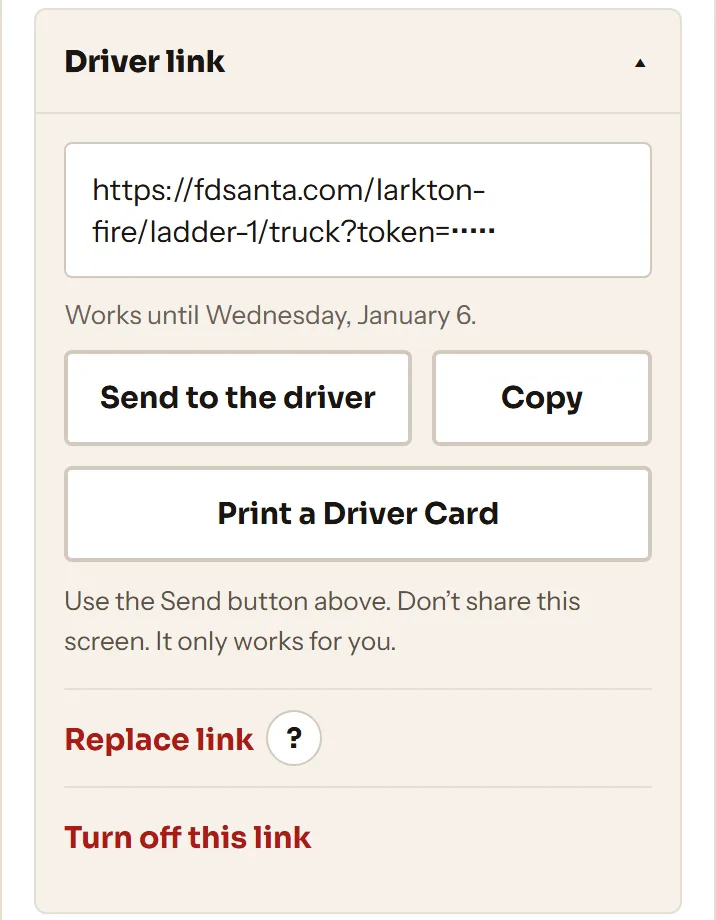
The driver says the link is invalid or expired.
Almost always one of three things:
- It was replaced or turned off. Replace link and Turn off this link stop the old link within 5 minutes. Send the driver the current link, or print a new card.
- The season is over. Driver links work until January 6.
- It’s the wrong kind of link. Truck links and photo links are separate on purpose, so the photo link you can pass around to a second person can’t move the truck on the map. A photo link opened on the truck page says it’s a photo link and can’t track the truck. Check you sent the one labeled Driver link.
The fix: send the driver the current driver link from the Santas tab, or press Replace link to make a new one.
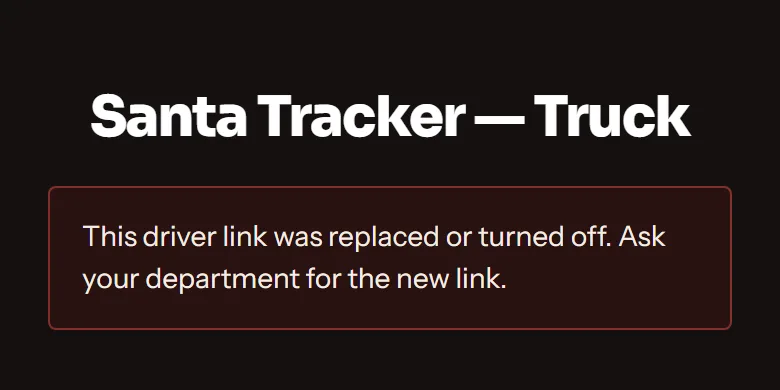
The map stopped moving mid-route. What happened?
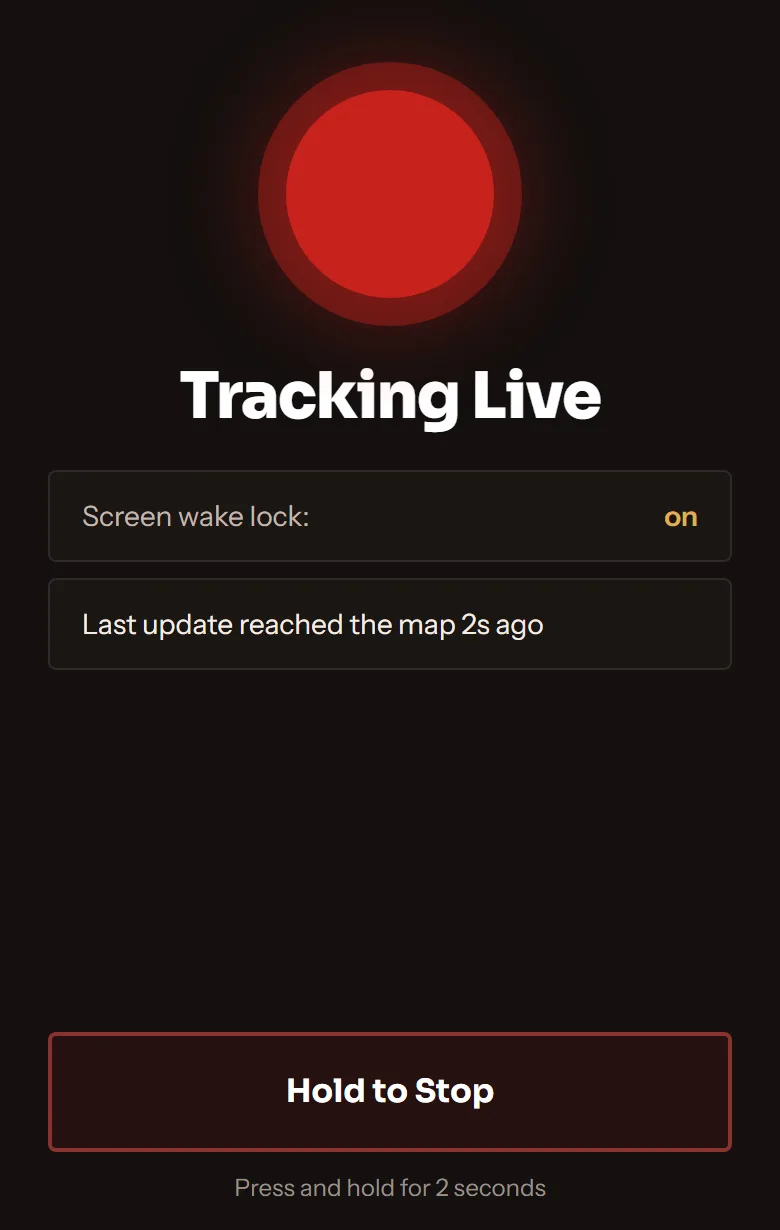
Nine times out of ten the phone went to sleep or the driver switched apps. The tracking page has to stay open and in the foreground — it stops reporting when it isn’t the visible screen.
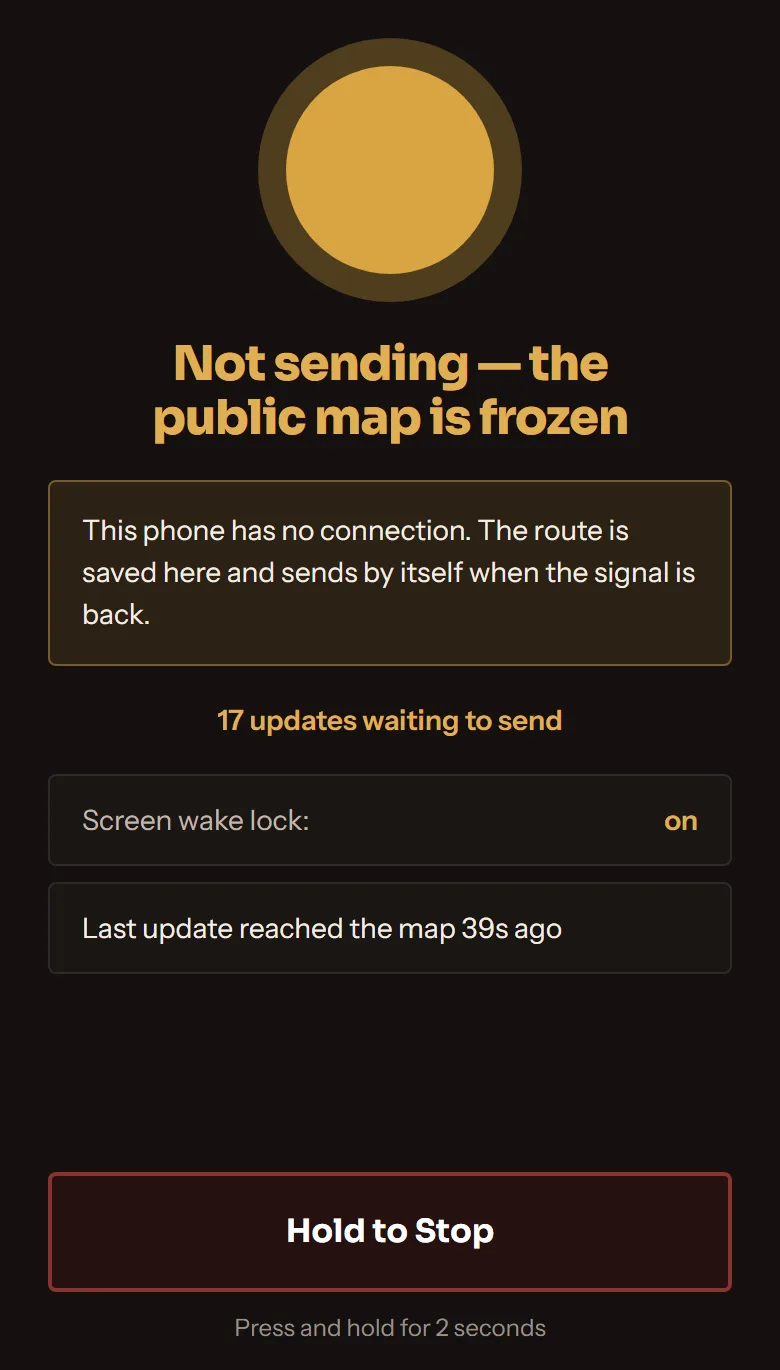
If the truck screen says “Not sending — the public map is frozen,” the phone has lost its connection or can’t find its location. The screen says which, and switches back by itself once updates reach us again.
The tracking screen asks the phone to stay awake, and shows you whether that worked (“Screen wake lock: on”). Some phones and browsers don’t support it, and the screen says “unsupported — keep phone plugged in.” Either way:
- Keep the phone plugged in. GPS plus a lit screen drains a battery fast.
- Prop it on the dash with a view of the sky. A phone face-down in a cupholder gets a much worse fix.
- Set the phone’s own auto-lock as long as it will go before you start.
- Use this phone only for tracking. Navigation, calls and photos go on a different phone: switching apps, or opening the photo link on this phone, can stop the map moving.
If you switch apps and return to the Start Tracking screen, press Start Tracking again. Your run picks up where it left off.
To recover: bring the tracking screen back to the foreground. If it has been asleep a long time, press and hold Hold to Stop, then press Start Tracking again.
We drove through an area with no cell signal.
Live viewers will see the truck marker sit still until signal comes back — the live map needs a working connection and there is no way around that.
The truck screen tells the driver. It switches to “Not sending — the public map is frozen” and counts the updates waiting on the phone. When the signal returns, it sends them and says “Caught up. The public map is updating again.”
The route record fills itself in afterward. Positions are held on the phone while the connection is down and uploaded once it returns, so the recap and your season statistics show the stretch you drove through the dead zone rather than a gap.
One caveat: that catch-up buffer lives in the open tracking page. If the driver force-closes the browser while still out of signal, the unsent positions from that stretch are gone. If you know you’re coming out of a dead zone, just leave the screen alone for a minute.
What do Go live and End tonight's run do?
Go live puts that Santa’s live map on your page. Press it when the truck is about to leave. Until the driver presses Start Tracking, people see “Waiting for the truck.”
End tonight’s run asks first, then sends your page back to the schedule.
Can we run two trucks on the same night?
Yes. Press Add a Santa in Santas, press Go live on both, and give each driver their own link or card.
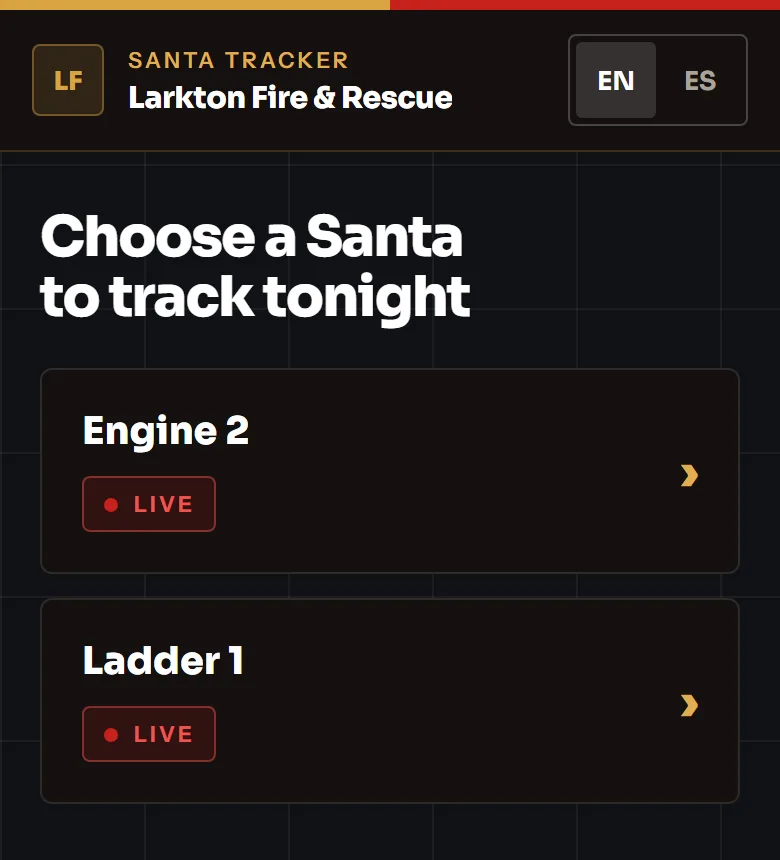
Your main page changes automatically: with two or more active Santas it shows a “choose a Santa” screen, and with exactly one it sends people straight to that truck’s map. You share the same address either way.
How do photos from the route get on the page?
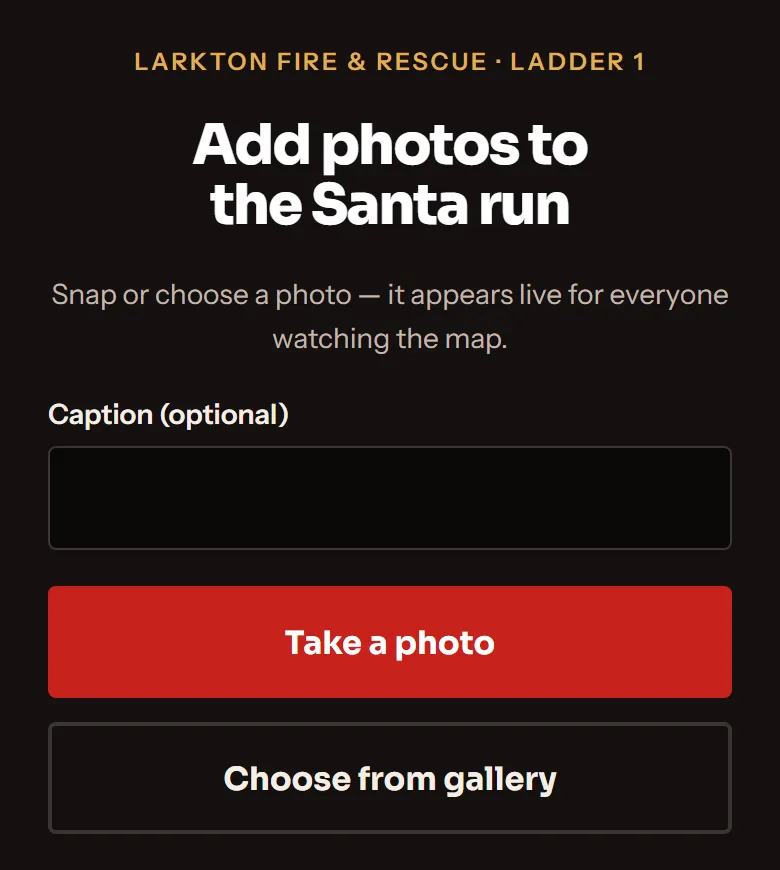
In Santas, press Make a photo link on that Santa’s card and send it to whoever is taking pictures, on a second phone. Don’t open the photo link on the tracking phone: it can replace the tracking page and stop the map moving. They can take a photo or choose one from the phone’s gallery. Photos they upload appear in a strip on the live page and in the recap at the end of the night.
You can remove any photo from Photos in the admin. Nothing the public submits ever appears — uploads only come from someone holding a photo link.
Your page and your community
What do people see when we're not driving?
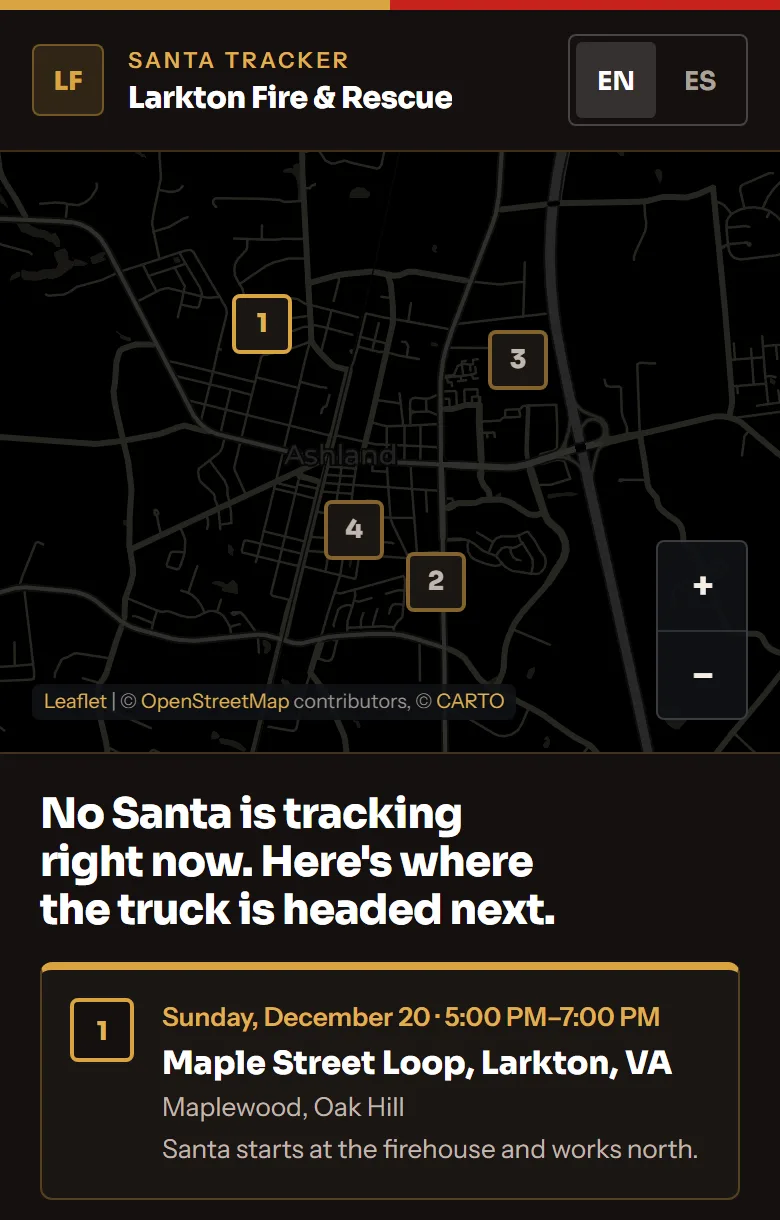
Your schedule. The same map shows numbered pins for your upcoming stops, with the dates, times, locations, and neighborhoods listed below it.
This is why filling in Schedule matters before your first night: an empty schedule means someone who visits your page in early December finds an empty page. On the night, before the truck starts moving, your page shows Santa heads out at the start time from your schedule.
Nobody can find our page / we typed our address wrong.
Your page link is fdsanta.com/your-department, and it is permanent — it can’t be changed from the dashboard. That is deliberate: every flyer and text message that points at your page points at that address, and changing it would break all of them at once.
If you spotted a mistake before sharing the link with anyone, email santa-help@respondermax.com right away and we’ll sort it out manually. Once the link is out in the community, assume it’s fixed.
Who can see the letters kids send us?
Only signed-in administrators of your department. Letters are never shown publicly, never shown to other departments, and never appear on the map or in the recap.
The first name and neighborhood on each letter are automatically erased 60 days after it’s sent. The message stays, and so does the count, so you can still report how many letters you received.
If a parent asks you to remove a letter sooner, email us and we’ll take care of it.
How accurate is the “estimated viewers” number?
It’s an estimate of visits, not a headcount of people, and we label it that way everywhere it appears. Your recap calls it Estimated viewers and Impact calls it Estimated unique viewers.
It counts anonymous browser sessions. A family watching on three phones counts as three. Someone who checks in from their phone and again from a laptop counts as two. We don’t track individuals across devices, and we’re not going to start in order to make the number look more precise than it is.
It’s a good year-over-year comparison and a fair thing to show a sponsor. It is not “we reached 3,200 neighbors,” and we’d ask you not to describe it that way.
Which phones can show the map?
Requires iOS 15 or later, or an up-to-date Android browser. If the map can’t load on an older device, the page shows a short message and the live updates still work.
Does the Spanish toggle translate everything?
It translates the interface — buttons, labels, the status ticker, and the standard copy on the page.
It does not translate text your department typed in: schedule notes, location names, and sponsor copy stay exactly as you wrote them. If you want those in both languages, write them that way.
Account and setup
How do I sign in? I don't have a password.
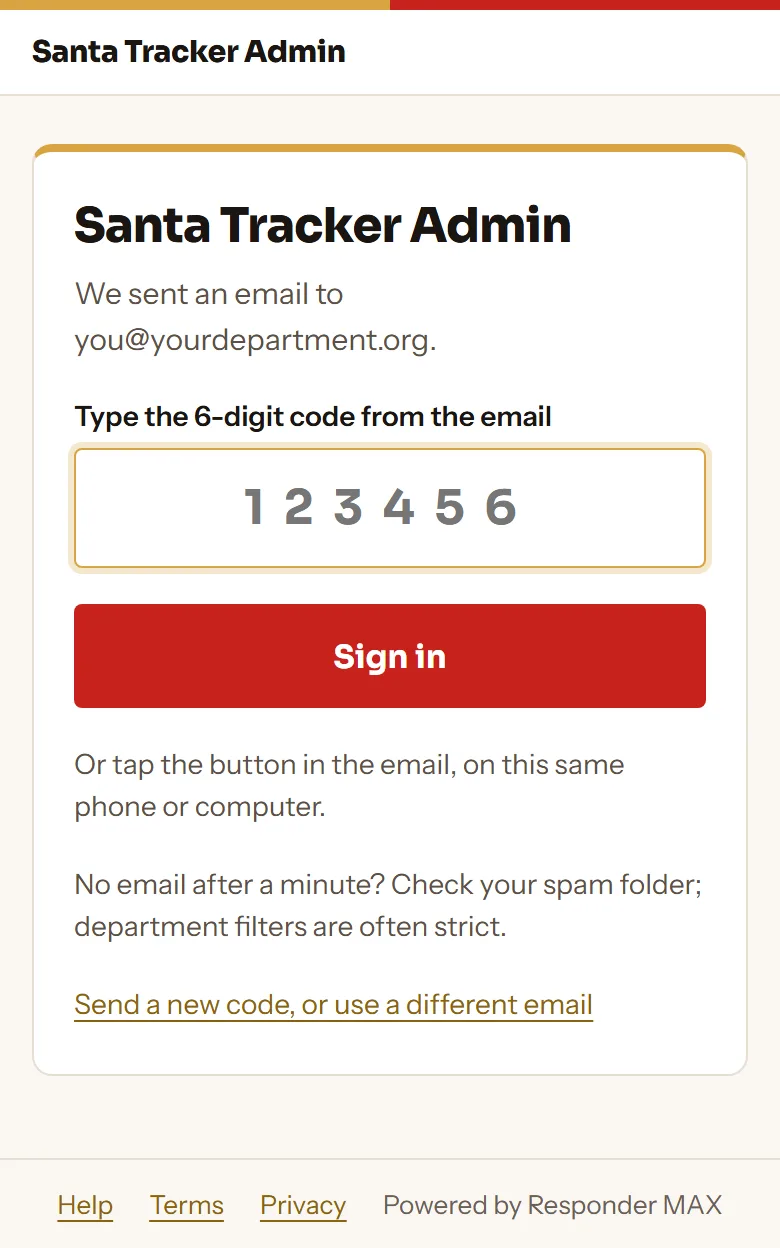
There isn’t one. Enter your email on the sign-in page and we’ll email you a 6-digit code. Type it in, or tap the button in the email on the same phone or computer. Each code works once, for one hour.
If it doesn’t arrive, check spam, and check you used the same address you signed up with. Anyone with access to that mailbox can get into your dashboard, so use a mailbox you control.
Can someone else at our department get access?
Not yet from the dashboard — adding a second administrator is the next thing we’re building. In the meantime, email santa-help@respondermax.com with the address you want added and we’ll set it up manually, usually the same day.
The same goes for handing the account to someone else when the person who signed up moves on. Please do that before they leave rather than after — it’s a much easier conversation.
What does this cost?
Free. No payment method, no trial, nothing to cancel. If we ever offer paid options, we’ll tell you well before a season, and you’ll never be charged without agreeing first.
Do we need to install an app? What phone should we use?
No app. Everything runs in the phone’s web browser.
Use the most reliable smartphone available, on a charger, with a decent data plan. It doesn’t need to be new — it needs to stay powered, stay connected, and stay on the tracking screen.
Something's wrong and we're driving in an hour.
Email santa-help@respondermax.com and put the word tonight in the subject line so it gets picked out of the queue.
Two things worth trying first, because they resolve most night-of problems: press Replace link on the Santa’s driver link and send the new one, and have the driver fully close the browser tab and reopen the new link.
Before your first night, do one dry run: make a driver link, open it on the actual phone that will be in the truck, press Start Tracking, and drive around the block while someone watches your public page. (Setup’s step 5, Test the phone in the truck, walks you through it.) Ten minutes in November is worth a great deal on December 24th.